
During reinstalling or signing back into Foxit, signatures could be removed from the app. To restore them, use the following steps:
- First, locate the signatures
- In your file explorer, search for the following path: C:\Users\[YourUsername]\AppData\Roaming\Foxit Software\Foxit Reader\InstaSign\UserSign
- Open the file inside this path to make sure it’s the correct signatures you are looking for.
- Open Foxit PDF Editor
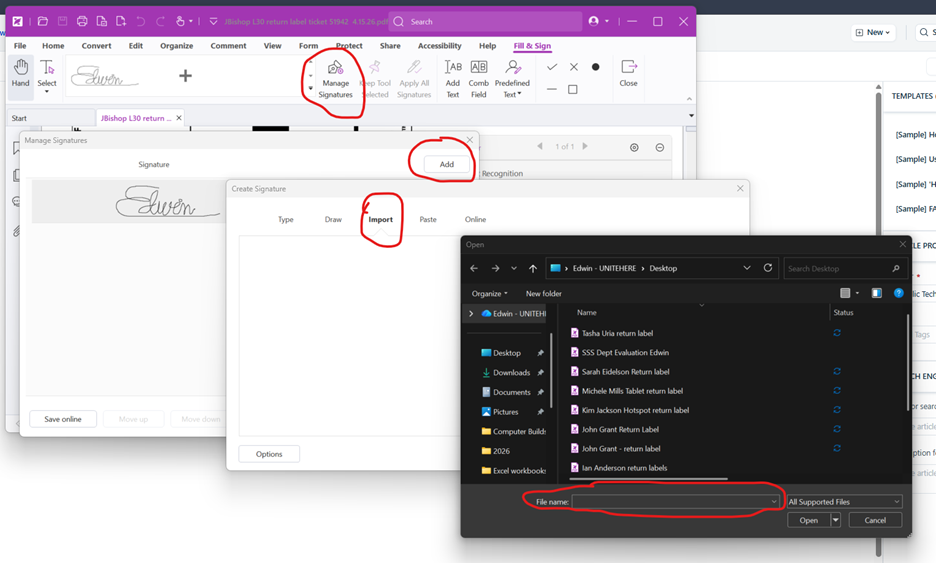
- Once you verify the signatures, open Foxit and click on the Protect tab. (P.S you will need to open a pdf file to add signatures)
- Under Protect tab, click on “Fill & Sign”
- Next click on “Manage Signatures”. Then click on add.
- A pop up will appear. Click on Import tab then “upload signature”
- This will open File Explorer. Paste the path from step one to upload the signature.
- If you have more signatures, repeat the previous steps