
This user guide shows how to clear site specific cookies on the Google Chrome web browser. Please reach out to support@unitehere.org with additional questions or concerns not addressed in the guide.
Site Specific Cookies
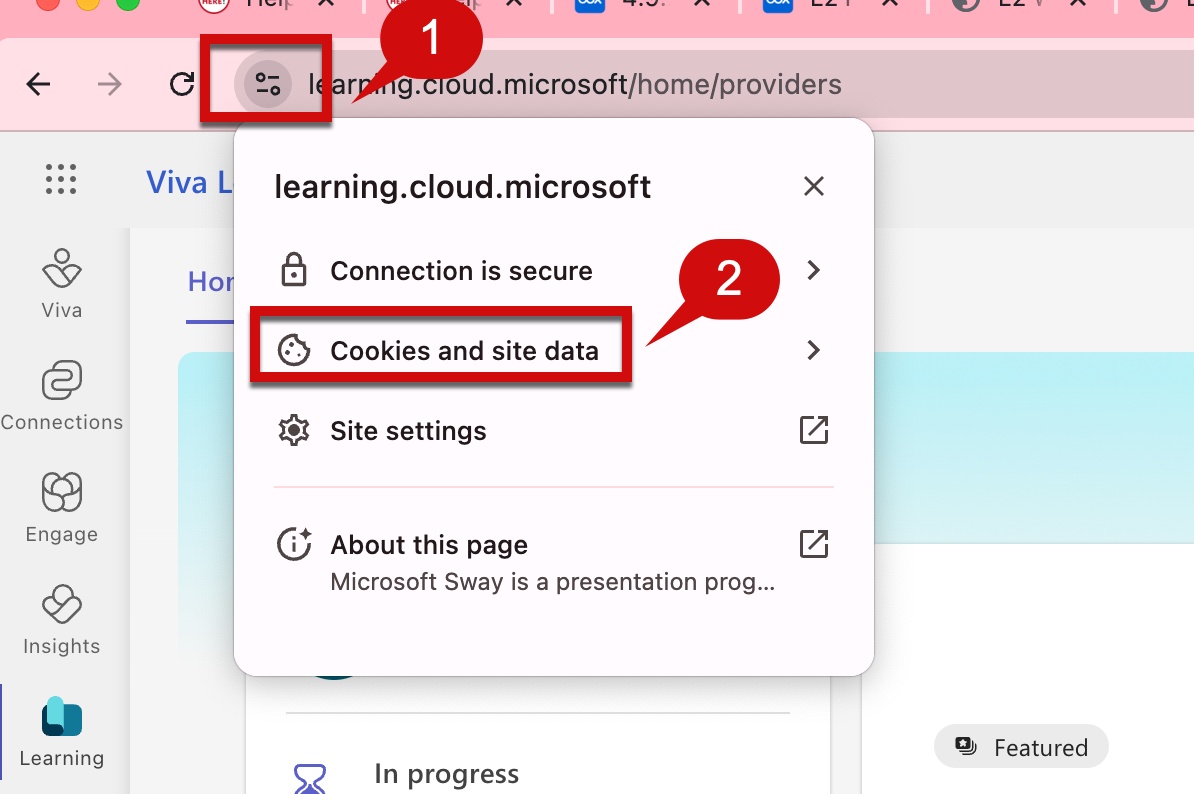
Step 1: Navigate to the website in question and click on the icon to the left of the URL.
Step 2: Click Cookies and site data.
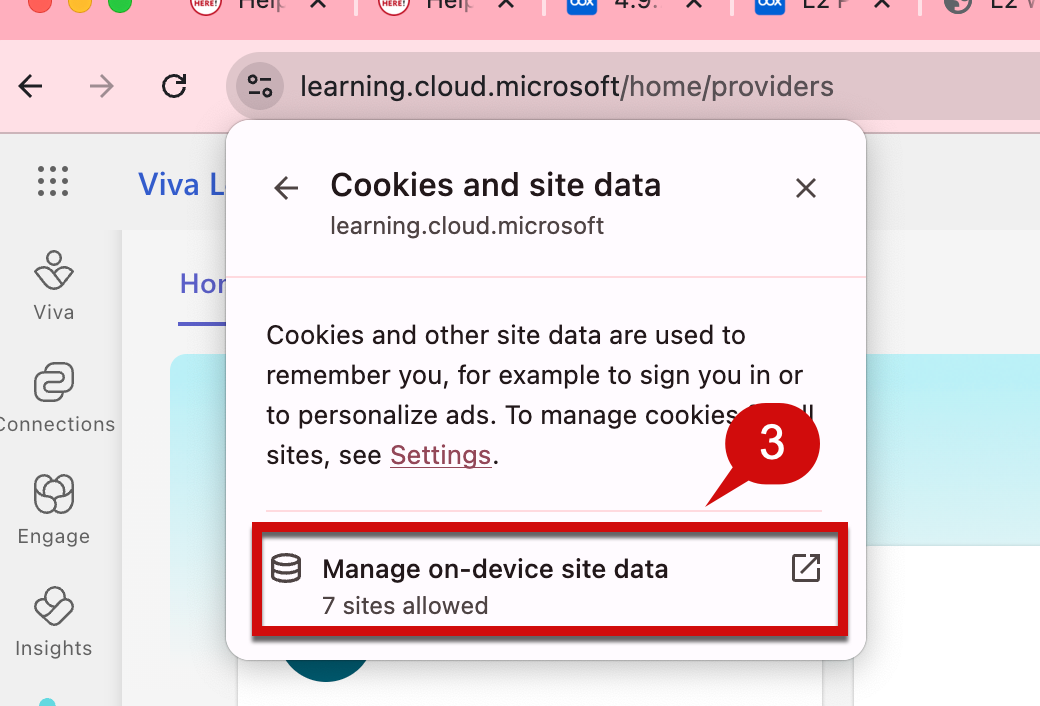
Step 3: Select Manage cookies and site data.
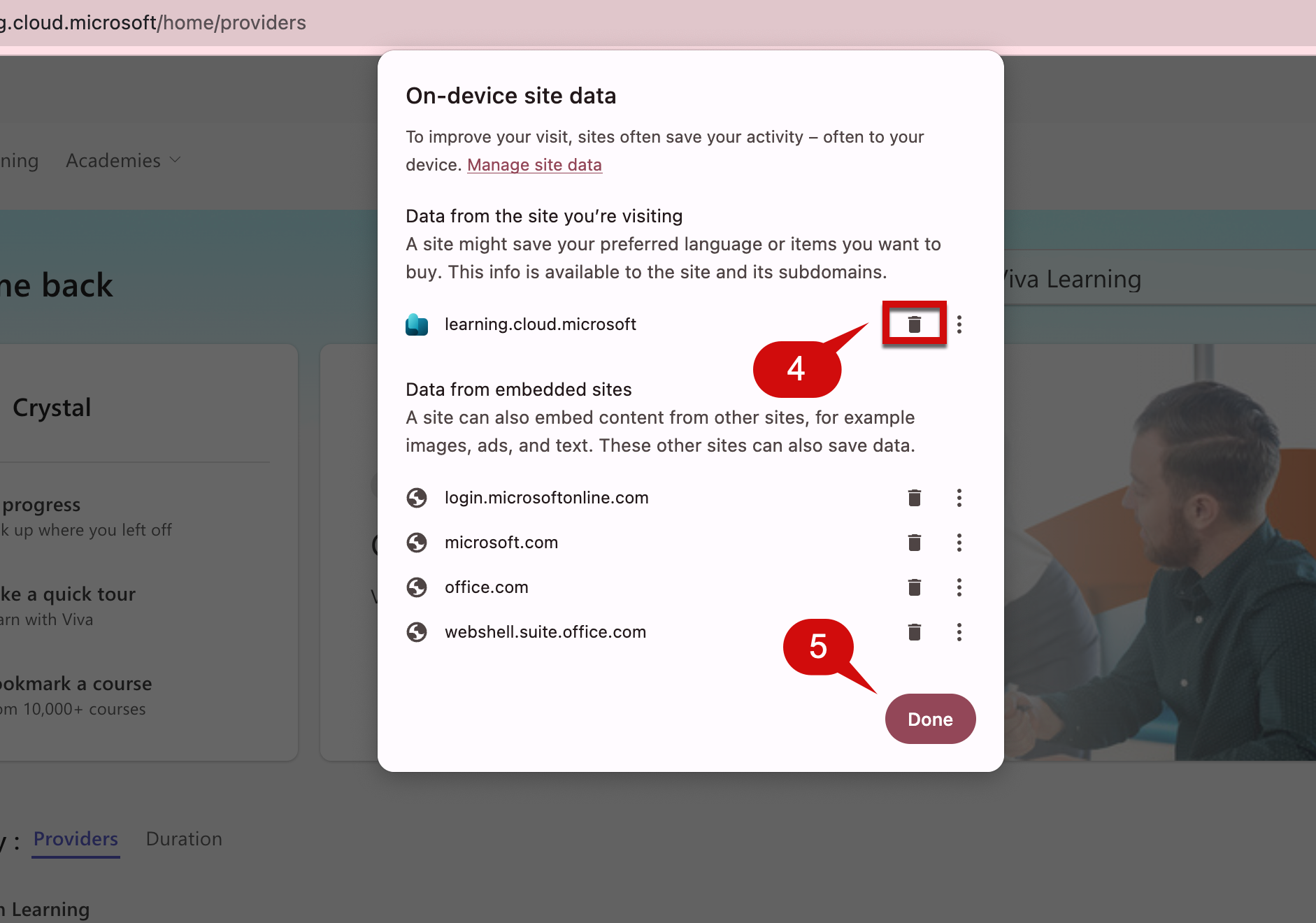
Step 4: Click the garbage can next to the website name. Additional websites can be removed by clicking the garbage can next to the website name.
Step 5: Once the box is empty click Done.
Step 6: Reload the site and sign in.
Still having trouble? Try clearing the cache by following the directions here.