
This user guide shows how to clear the cache on the Google Chrome web browser. Please reach out to support@unitehere.org with additional questions or concerns not addressed in the guide.
Clear Cache in Chrome
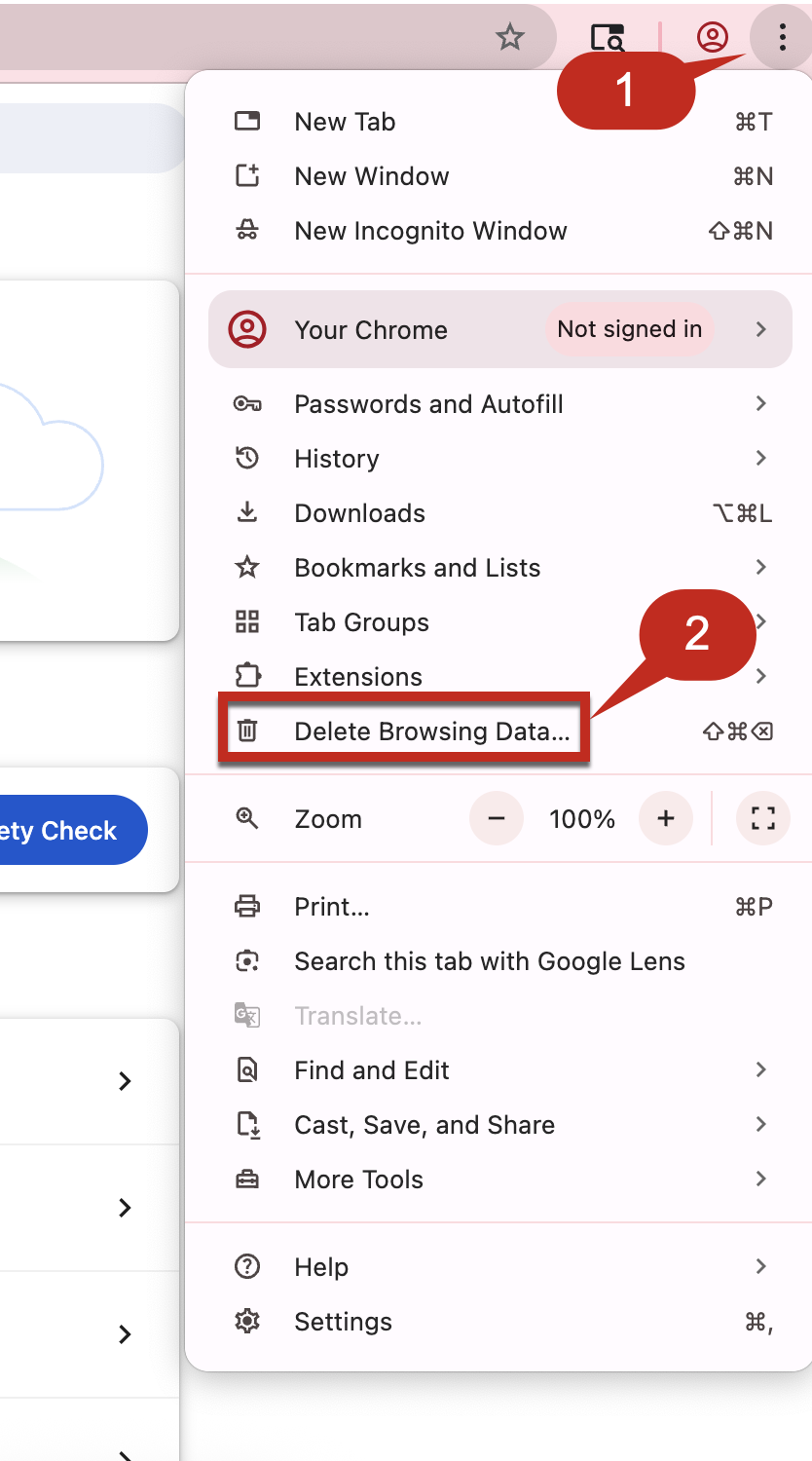
Step 1: Click the three dots in the upper righthand corner of the screen.
Step 2: Choose Clear browsing data.
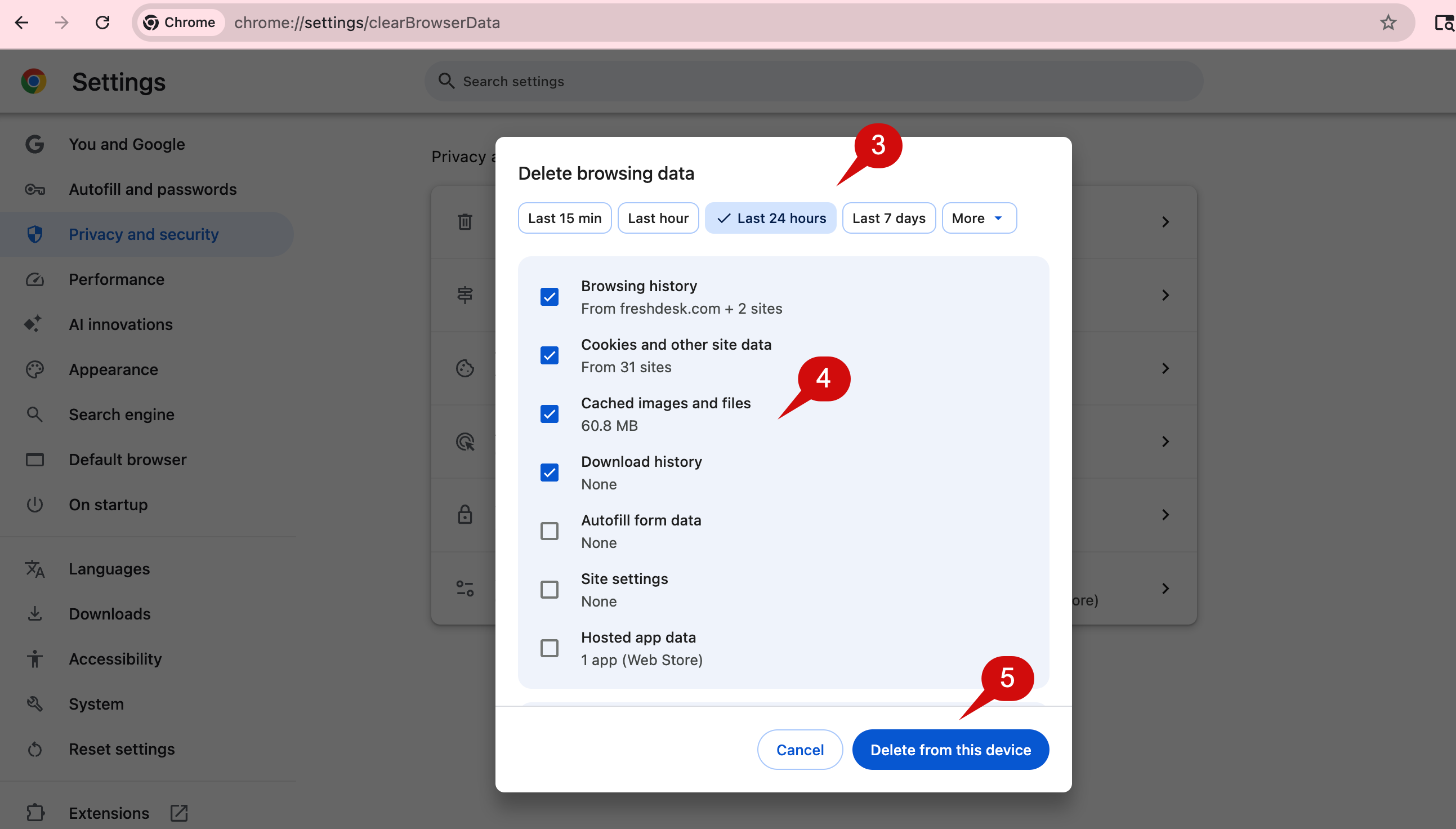
Step 3: Uncheck any unwanted boxes except Cached images and files. Leaving the Cookies and other site data checked is a quick way to clear the cache and cookies at the same time.
Step 4: Change the time range to desired time frame. All time is recommended and listed under the More dropdown.
Step 5: Click Delete from this device.
For information on how to clear site specific cookies, click here.