This article will explain how to set-up an email account in the Outlook mail application. Contact support@unitehere.org for further questions or complications.
Mail can always be accessed online through the Okta login portal. Once logged in through Okta, click on the mail tile.
TABLE OF CONTENTS
Removing an Account
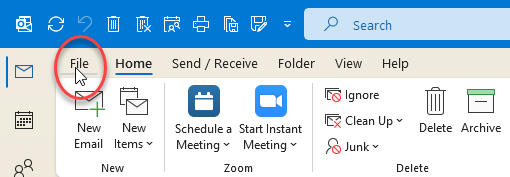
Step 1: Click File
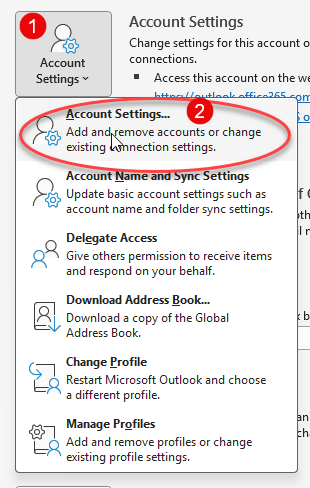
Step 2: Click Account Setting to access the drop down menu. Then click Account Settings.
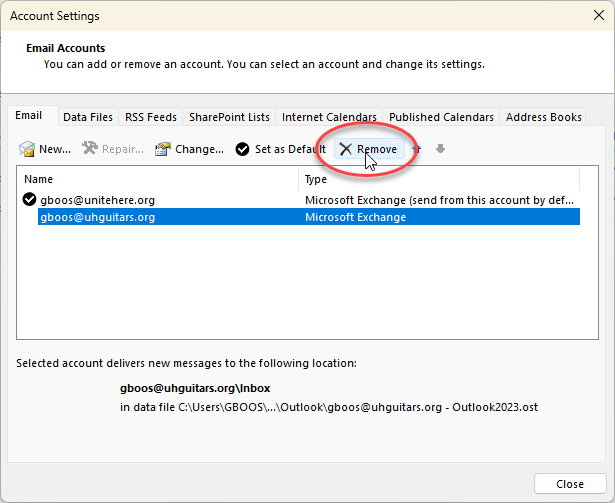
Step 3: Click the account you want to remove, then click Remove.
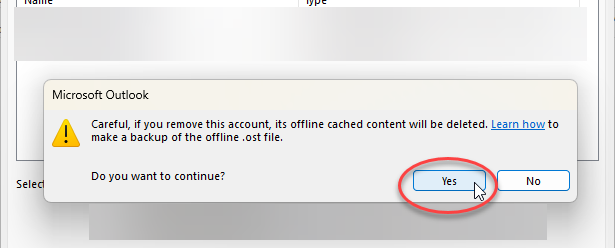
Step 4: A pop-up warning will ask if you want to continue. (If you need to make a backup of your cached content, follow the instructions at the "Learn How" link.) Click Yes.
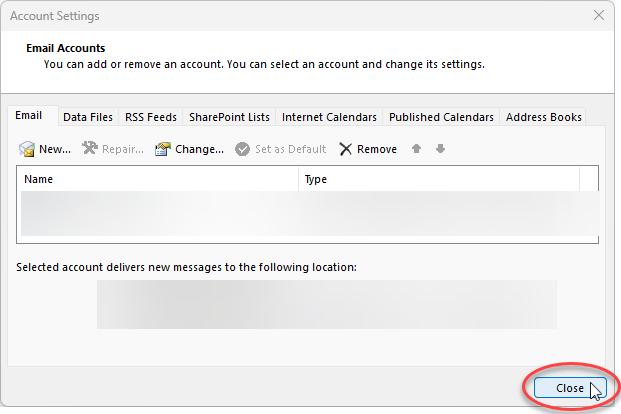
Step 5: Click Close.
Adding an Account
Step 1: Click File
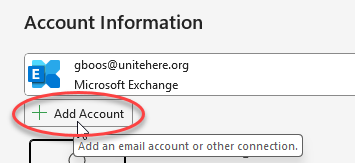
Step 2: Under Account Information click Add Account.
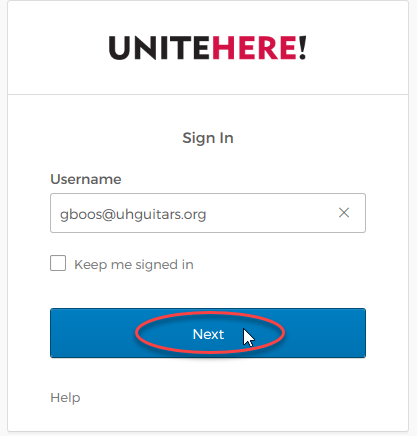
Step 3: Type in the email address and click Next.
Step 4: Enter password and click Verify.
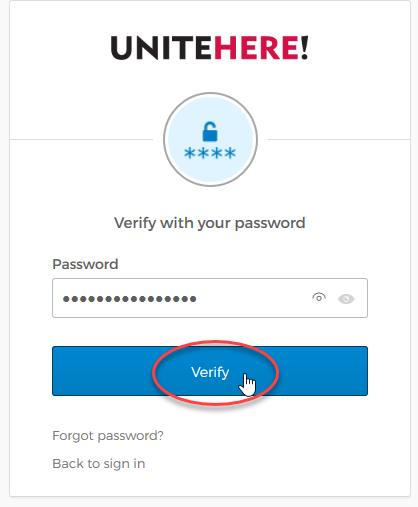
Step 5: Complete the Okta Verify process.
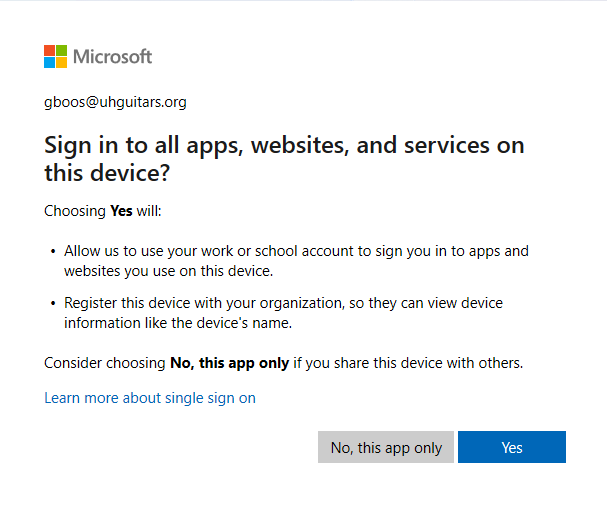
Step 6: Decide if you want to use this account to sign in to all apps, websites, and services on this device. Click the appropriate response.
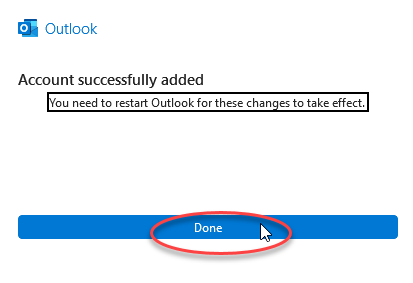
Step 7: Click Done then Restart Outlook.