This article will explain how to set-up an email account in the Outlook mail application. For configuring mail in the Mail application for Mac, please see this article. Contact support@unitehere.org for further questions or complications.
Mail can always be accessed online through the Okta login portal. Once logged in through Okta, click on the mail tile.
TABLE OF CONTENTS
Removing a Previous Account
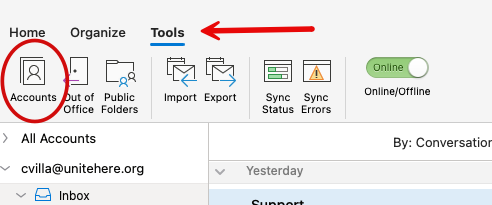
Step 1: Find the Tools tab and select Accounts.
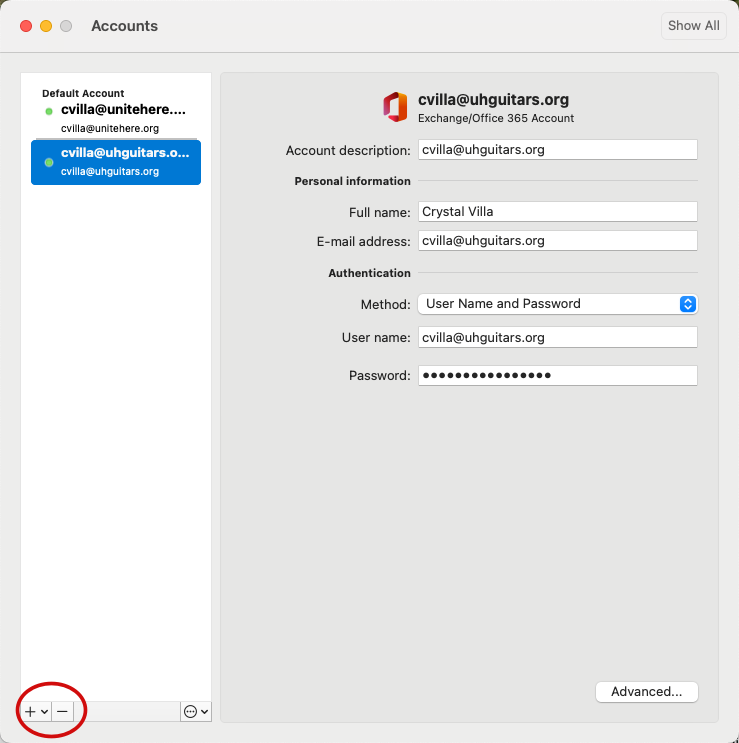
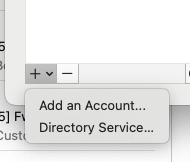
Step 2: Then highlight the account to be removed and click the minus sign in the bottom left corner.
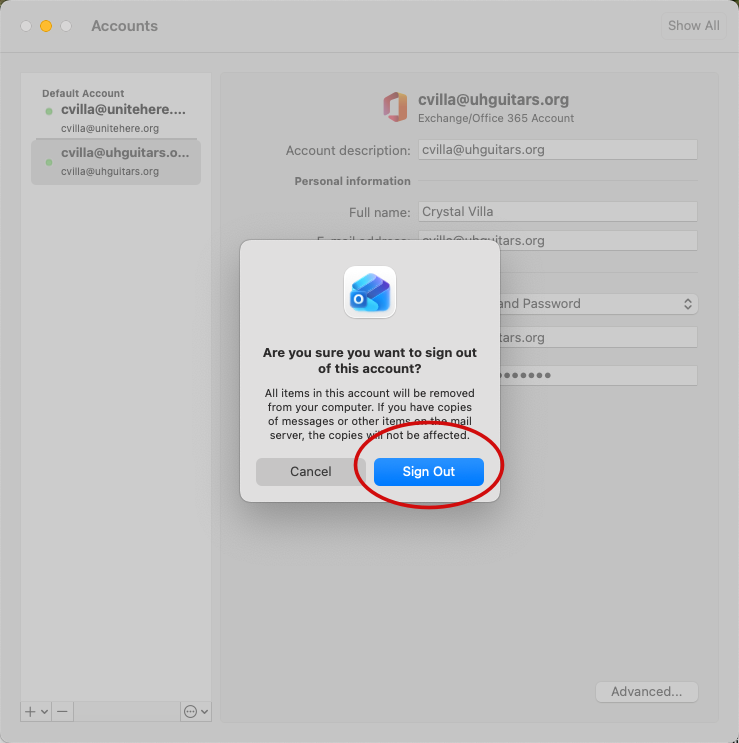
Step 3: Confirm this is the account to be logged out.
Re-Adding a Previous Account
Step 1: Find the Tools tab and select Accounts.
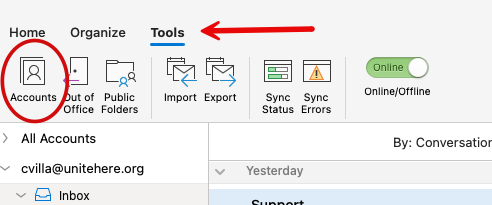
Step 2: Then highlight the account to be removed and click the plus sign in the bottom left corner, then add account.
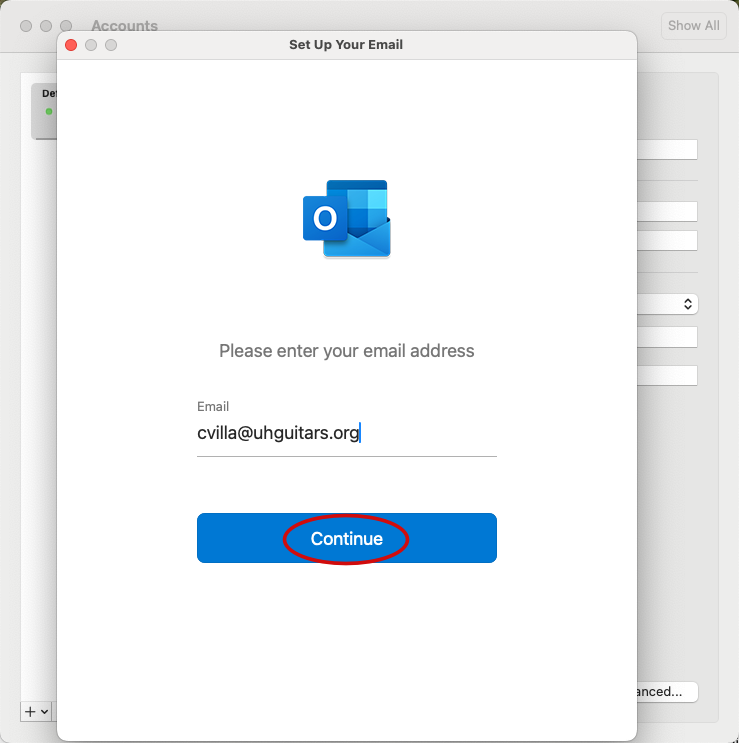
Step 3: Type in the email address and follow any steps in the pop-up window. Press continue.
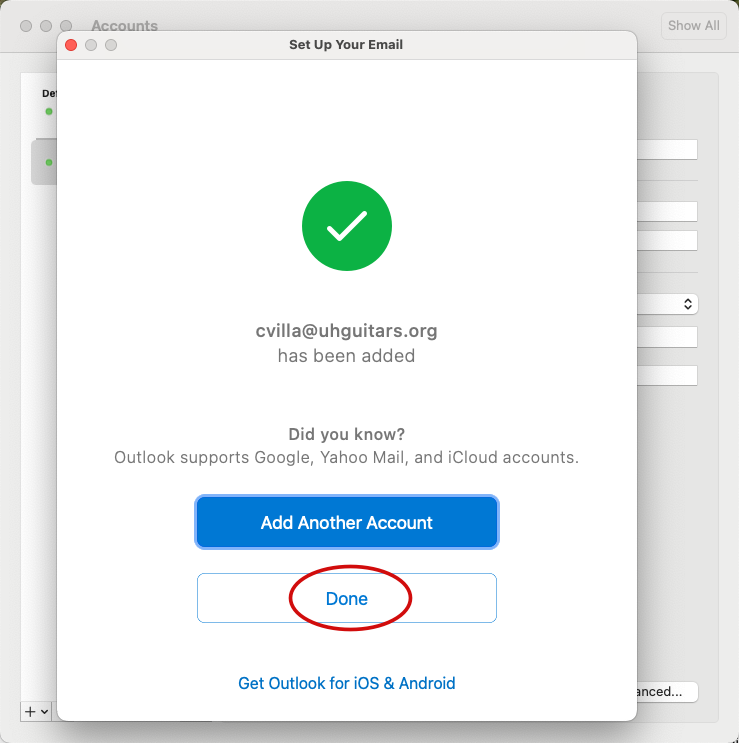
Step 4: Click done.