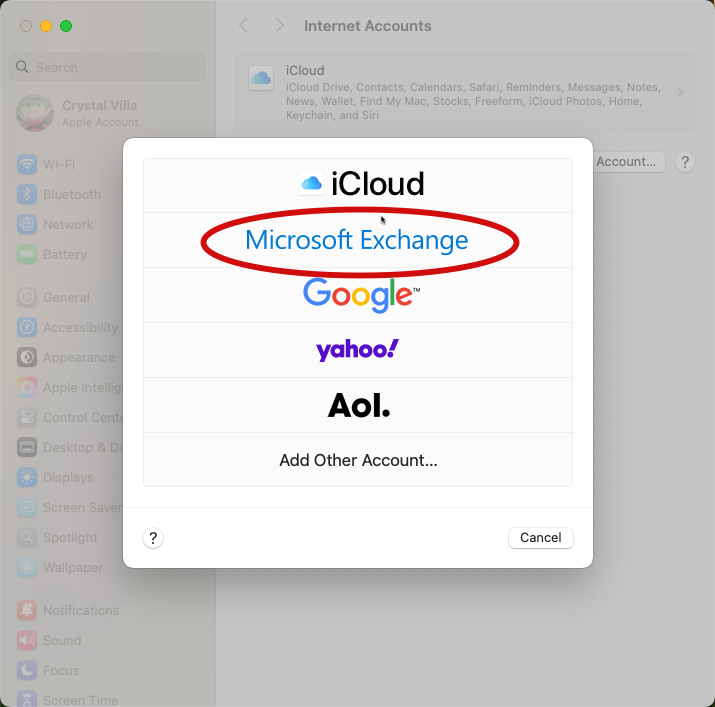
This article will explain how to set-up an email account in the native Mac mail application. For configuring mail in the Outlook application for Mac, please see this article. Contact support@unitehere.org for further questions or complications.
Mail can always be accessed online through the Okta login portal. Once logged in through Okta, click on the mail tile.
TABLE OF CONTENTS
Setting Up a New Account
Step 1: Navigate to the Mail application either on the task bar or through the Finder application.
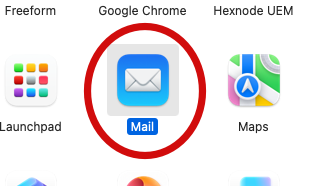
Step 2: New users will automatically be prompted to choose an account provider. Click on Microsoft Exchange, then press continue.
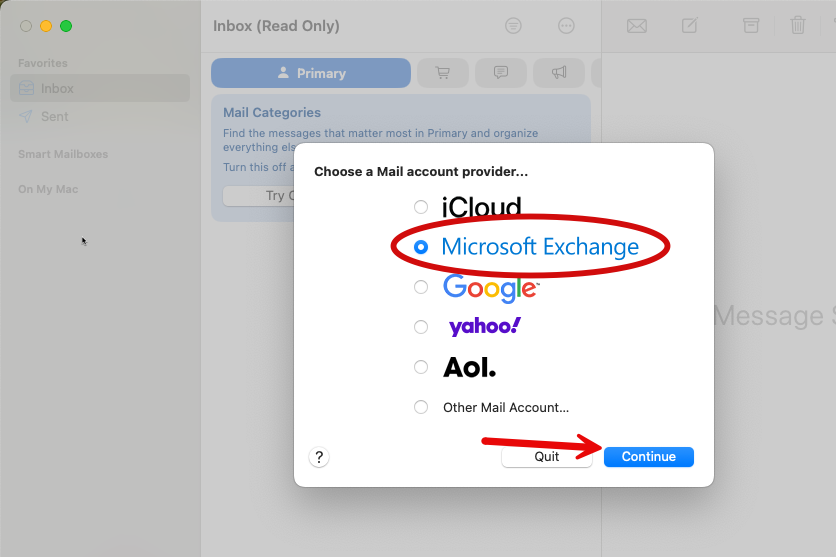
Step 3: Enter the email address and click Sign In.
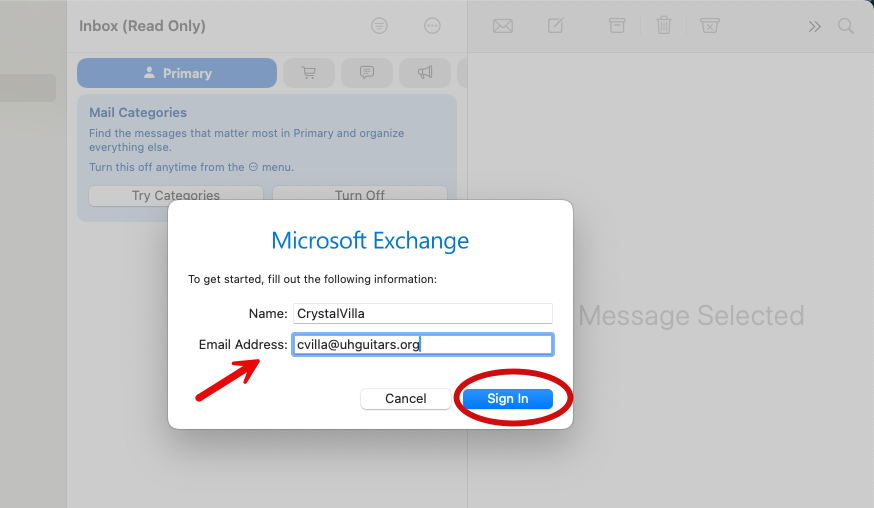
Step 4: Again select Sign In on the new pop-up.
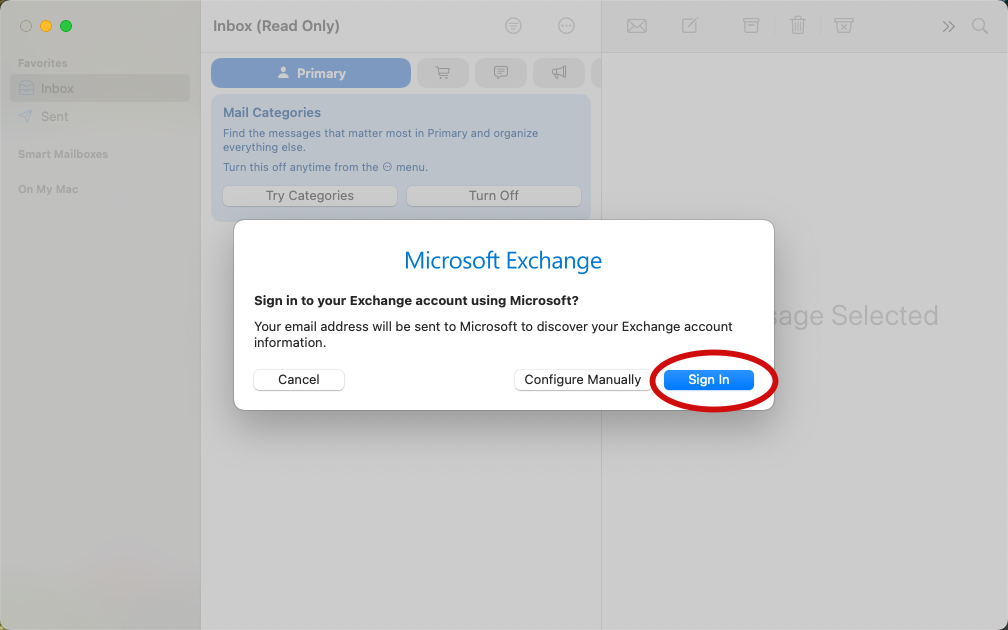
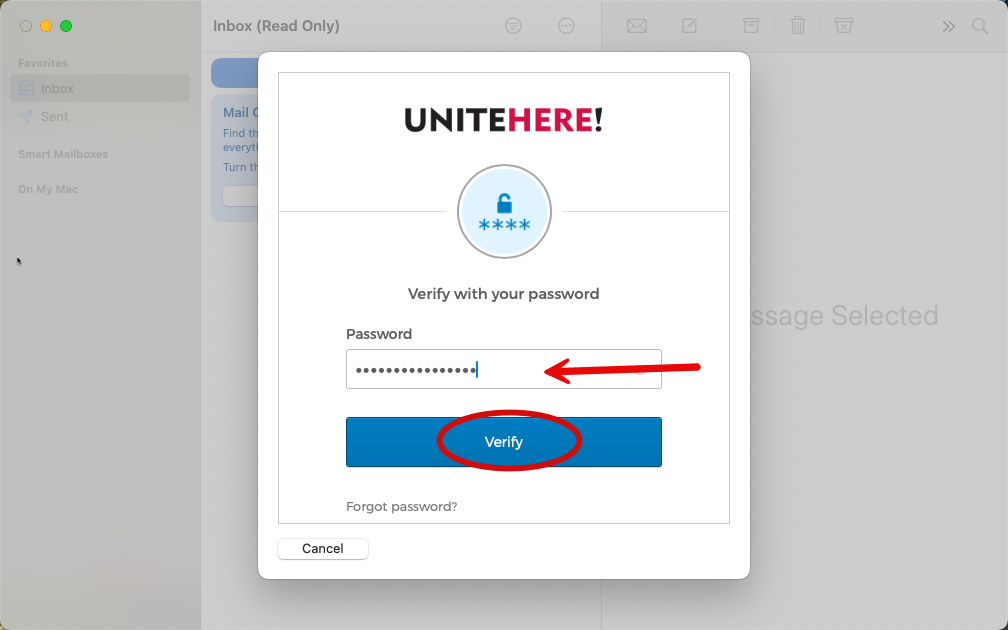
Step 5: Enter the Okta password associated with the email account. Click Verify.
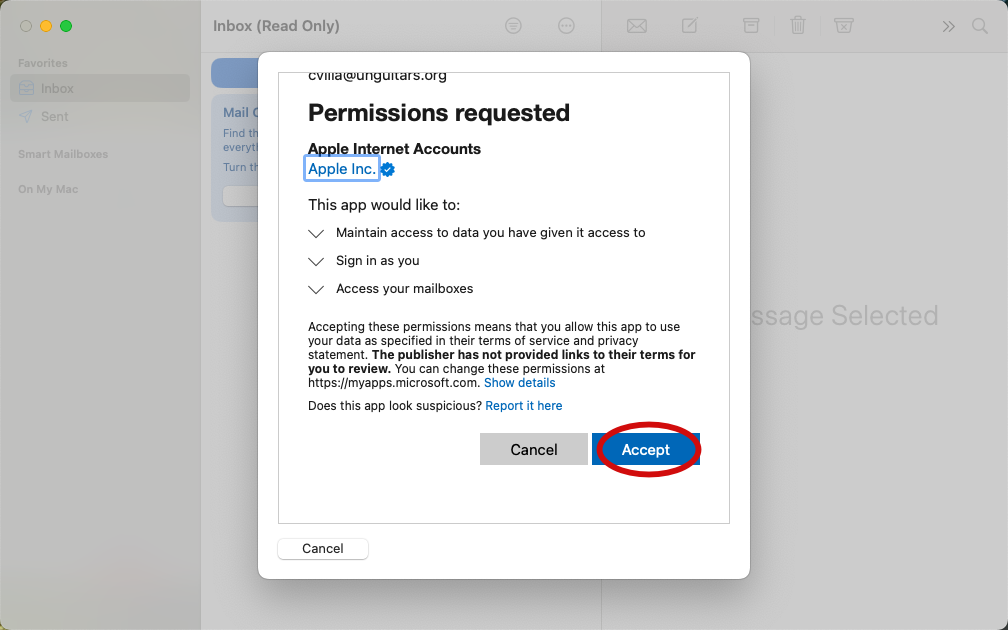
Step 6: Click Accept on the permissions requested page.
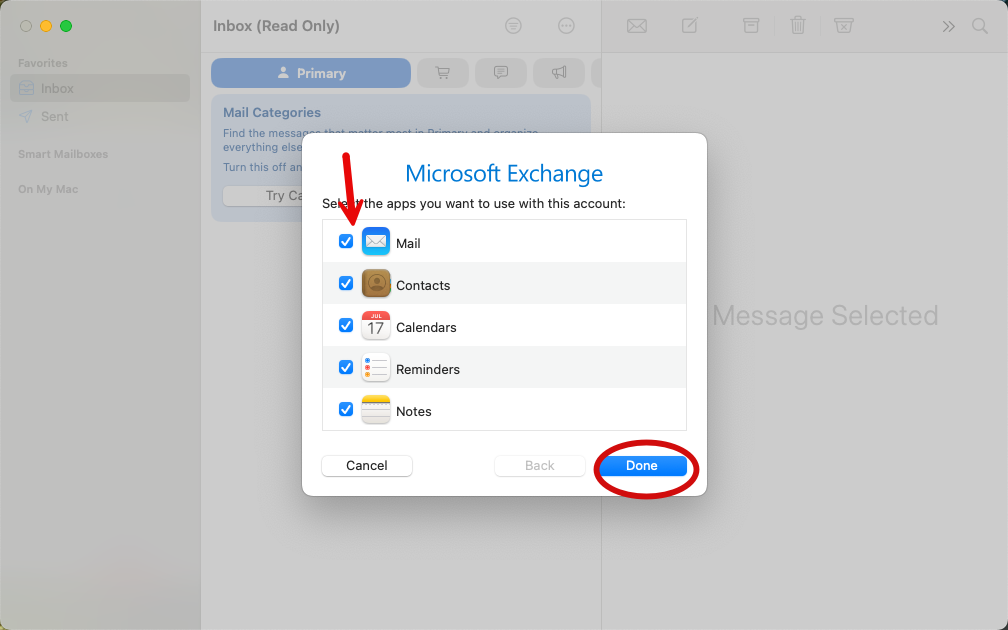
Step 7: Decide what applications the computer should also use with this email account. Then click Done.
Step 8: Begin using the mail application!
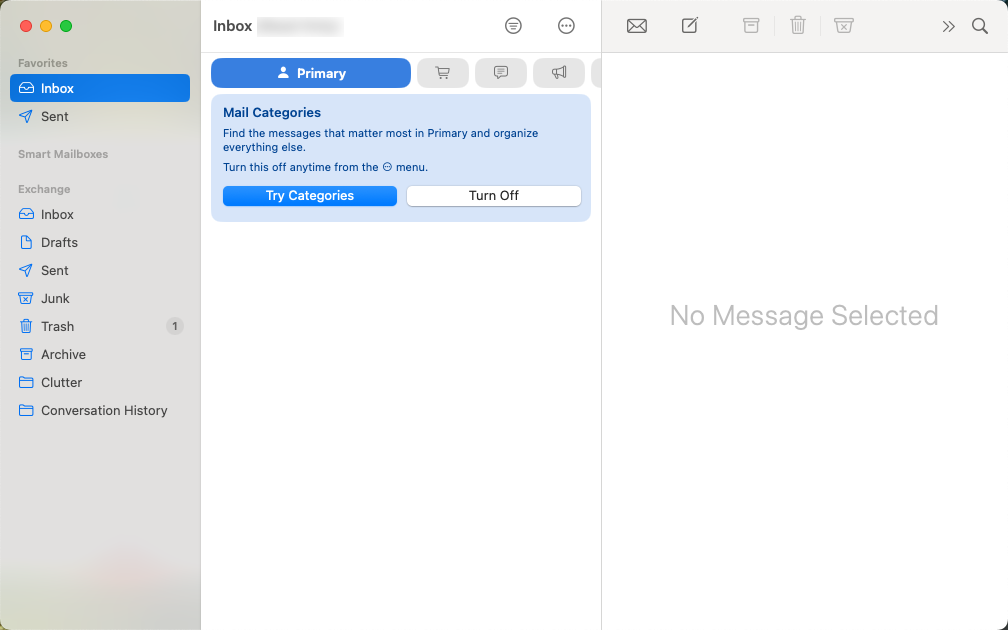
Removing a Previous Account
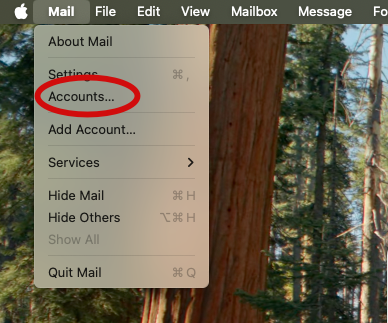
Step 1: Navigate to the Mail application. Then find the Mail drop-down menu in the upper right corner of the screen and click on Accounts.
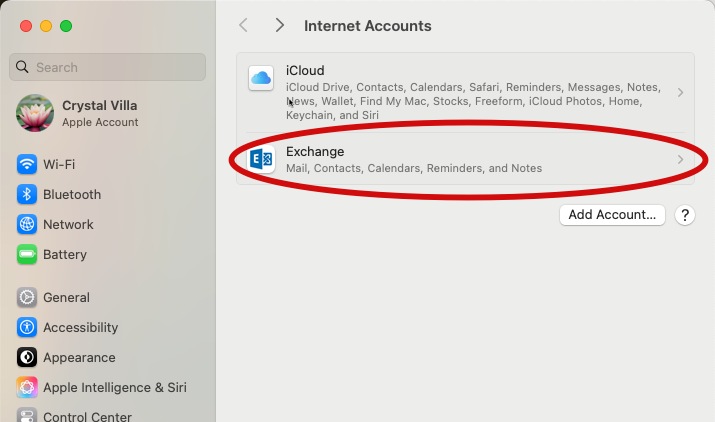
Step 2: Identify the account to be removed and click on that account name.
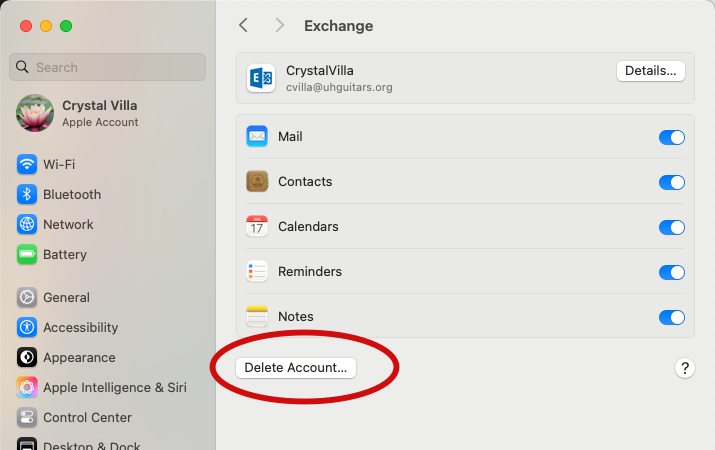
Step 3: Click on Delete Account.
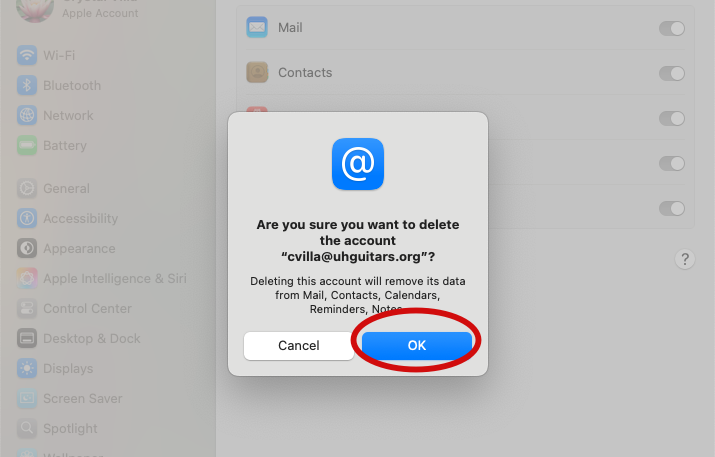
Step 4: Confirm the deletion of the account by pressing OK.
Re-Adding a Previous Account
Step 1: Navigate to the Mail application. Then find the Mail drop-down menu in the upper right corner of the screen and click on Accounts.
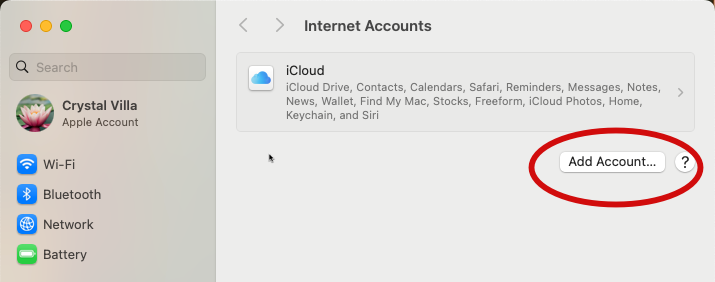
Step 2: Click Add Account.
Step 3: Choose the Microsoft Exchange option. Then follow steps 3-8 of adding a new account.